
Order Flow Pro Suite

Order Block Indicator for TradingView

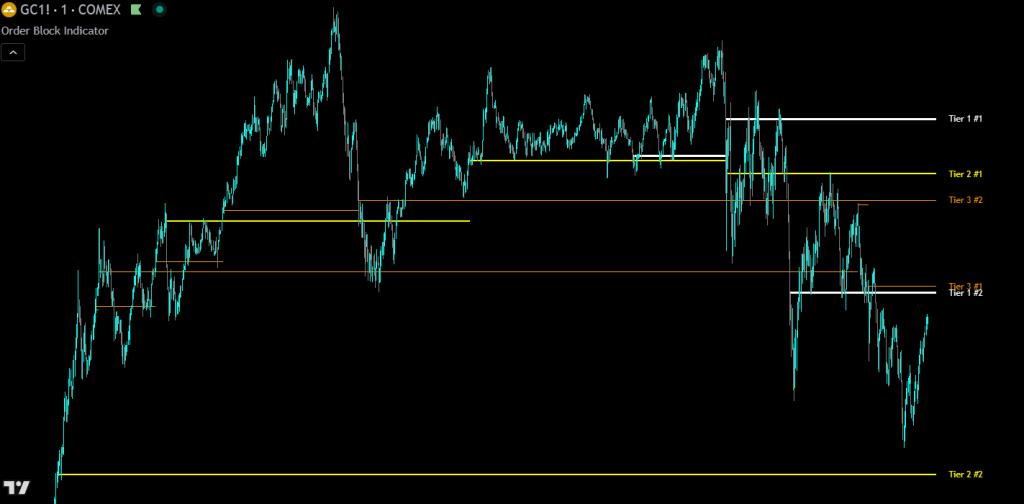
Order Block Indicator on a TradingView chart showing three-tier ranked institutional order block levels

Order Block Indicator is a multi-timeframe TradingView tool that detects institutional order clusters and ranks them across three tiers of significance. Day traders and swing traders use it to mark high-probability support and resistance levels where price is likely to react when retested.

The indicator adapts to price and volume data in real time, detecting only the levels with the highest importance and displaying them with rankings for ease of use. This adaptive approach means the indicator automatically adjusts to current market conditions, providing relevant levels during both high-volatility and low-volatility periods.

The indicator works on any market with volume data, including futures, stocks, forex, crypto, and commodities. It can be used on lower timeframe charts such as 1-minute intervals for day trading, as well as higher timeframe charts such as 1-day for swing trading.

Built by Lane Dotson · Last updated · View on TradingView →
Part of the Order Flow Pro Suite - 4 indicators for $169.99/mo. View all included indicators → See pricing →
Real Order Activity: The Order Block Indicator analyzes real order activity from three separate lower timeframes using tick-level and second-level volume data. Detected levels represent actual institutional order clusters, not estimates derived from price action patterns or candlestick formations.

IN ACTION

Chart Examples

Day Trading The 1-Minute Charts

Apple on the 1-minute chart with default settings.

Order Block Indicator on the Apple 1-minute chart showing three-tier institutional order block levels for day trading
Apple (AAPL) on the 1-minute chart with default Order Block Indicator settings. Tier 1, 2, and 3 levels displayed with rankings.

Tesla on the 1-minute chart with default settings.

Order Block Indicator on the Tesla 1-minute chart showing ranked institutional support and resistance levels
Tesla (TSLA) on the 1-minute chart with default settings showing institutional order block levels automatically detected and ranked.

Swing Trading The 1-Day Charts

NVIDIA on the 1-day chart with 5m, 15m, 30m timeframes for data and 12-month session tracking.

Order Block Indicator on the NVIDIA 1-day chart showing swing trading order block levels with monthly session tracking
NVIDIA (NVDA) on the 1-day chart with 5m, 15m, 30m data timeframes and 12-month session tracking for swing trading.

Apple on the 1-day chart with 5m, 15m, 30m timeframes for data and 12-month session tracking.

Order Block Indicator on the Apple 1-day chart showing swing trading institutional order block levels
Apple (AAPL) on the 1-day chart with 5m, 15m, 30m data timeframes and 12-month session tracking.

Nasdaq Futures (NQ) on the 1-day chart with 5m, 15m, 30m timeframes for data and 12-month session tracking.

Order Block Indicator on the NQ Nasdaq futures 1-day chart showing institutional order block levels for swing trading
Nasdaq Futures (NQ) on the 1-day chart with 5m, 15m, 30m data timeframes and 12-month session tracking.

UNDER THE HOOD

How It Works

The Order Block Indicator analyzes data from three separate lower timeframes (default: 1S, 5S, 10S) to identify areas of significant institutional order activity. The proprietary detection algorithm evaluates order size and frequency to find price levels that are most likely to act as future support or resistance.

Adaptive Detection

The indicator continuously adapts to market conditions in real time. Rather than using static thresholds that become irrelevant as volatility changes, the algorithm dynamically adjusts its sensitivity. This allows the indicator to identify meaningful institutional activity during both quiet overnight sessions and volatile market opens.

Three-Tier Classification

Detected order blocks are classified into three tiers based on their significance:

  • Tier 1 (thickest lines): Highest importance – the strongest levels detected
  • Tier 2 (medium lines): Second highest importance – significant levels
  • Tier 3 (thinnest lines): Third highest importance – moderate levels

Tier 1 levels represent areas where price is most likely to react strongly. Tier 2 and Tier 3 levels represent slightly less significant areas but are still extremely valuable levels.

Ranking System

Within each tier, levels are ranked by their significance. The #1 ranked level in each tier represents the most important level for that classification. Rankings update in real time as new levels are detected, ensuring you always see the most relevant information.

Session-Based Tracking

Levels are tracked within user-defined sessions (Hourly, Daily, Weekly, or Monthly). At session boundaries, current levels are terminated and the most important levels from each tier can optionally extend forward as “Prev” lines. This allows you to maintain awareness of key historical levels while focusing on current session activity.

Lower Timeframe Data Availability Visualization

A built-in diagnostic tool lets you see exactly when data from each lower timeframe started on your chart. When “Show Lower Timeframe History On Chart” is enabled, colored circles appear at the bottom of the chart while data is available for each timeframe, with a label on the first bar of data indicating which timeframe started there.

Order Block Indicator data availability visualization showing colored circles indicating where each lower timeframe's historical data begins
Data availability circles: each color represents a different lower timeframe. When one timeframe runs out of data, the next timeframe's circles become visible.

Since your timeframes should be in ascending order (e.g., 1S, 5S, 10S), the shorter timeframe will end its circles sooner, then timeframe 2 becomes visible, then timeframe 3. This helps you visualize exactly how much data you get with your specific settings so you can adjust them to ensure all three lower timeframes provide data for the entire tracking session.

You want to make sure that your lower timeframes provide data for the entire tracking session with all 3 timeframes and potentially multiple session periods for backtesting. For example, if you have the tracking session set to 1 day, your indicator should show the lower timeframe #1 circles all the way back to market open on the previous day or further.

Note that on continuous futures contracts charts like NQ1! and ES1!, data will start at 1 week prior to your current time due to how TradingView handles contract rollovers.

HOW TO TRADE WITH IT

Trading Applications

Identifying Support and Resistance

Order block levels represent prices where significant institutional activity occurred. When price approaches these levels, watch for:

  • Price reactions (bounces or rejections, especially with large wicks) confirming the level’s significance
  • Breakouts and then retests of these levels
  • Reversals when an order block appears at extreme ends of an upward or downward move, and then price bounces off of that order block
  • Add multiple instances of the indicator with different tracking sessions (1H, 1D, 1W) to see recent hourly levels, daily session levels, and weekly session levels. Each provides strong entry zones for scalping bounces.

Using the Tier System

  • Tier 1 levels represent the strongest institutional interest and often produce the most reliable reactions
  • Tier 2 levels indicate significant activity and serve as high-probability support/resistance
  • Tier 3 levels show moderate activity and can be used for scalping targets or secondary reference points
  • When multiple tier levels cluster near each other, the zone gains exceptional significance

Trading Approaches

  • Use Tier 1 and Tier 2 levels for primary trade decisions (entries, exits, stop placement)
  • Use Tier 3 levels for scaling in/out or as warning zones
  • Scalp rejections at the order blocks, especially when large wicks form at the level
  • Watch for price reactions at “Prev” levels from the previous session
  • Combine with price action confirmation (candlestick patterns, market structure, order flow) for best results
  • Many times price will push through an order block and appear to not respect that level, but then when price comes back to it, the candle bodies and wicks show clear significance to that level. Use this to your advantage and trade the retests of these levels

Understanding Rankings

  • #1 = Most significant level in that tier this session
  • #2 = Second most significant, etc.

CONFIGURATION

Settings Overview

Global Settings

Setting Default Description
Session Length To Reset Tracking Daily (D) How often level tracking resets. Options:Any timeframe you want from 1m to 1Y. Day traders typically use Daily; swing traders may prefer Weekly or Monthly or Yearly
Show Tracking Session Period On Labels Off Appends the session timeframe to labels (e.g., "Tier 1 #1 (D)"). Useful when running multiple instances with different session settings
Lower Timeframe #1 For Data 1S First data resolution for scanning orders. Must be smaller than your chart timeframe
Lower Timeframe #2 For Data 5S Second data resolution. Should be different from #1 and #3. Must be smaller than your chart timeframe
Lower Timeframe #3 For Data 10S Third data resolution. Choose the lowest timeframes you can that still provide at least 2 full session periods of historical data. Must be smaller than your chart timeframe

Tier 1 Settings (Highest Importance)

Setting Default Description
Tier 1 Levels On/Off On Enable or disable Tier 1 level display
Labels On/Off On Show or hide Tier 1 labels
Number Of Tier 1 Levels To Track 2 How many Tier 1 levels to display, ranked by significance
Extend Previous Session Important Levels On When enabled, top levels extend into the next session as "Prev" lines
Number Of Previous Session Levels To Extend 1 How many top Tier 1 levels to carry forward
Line Color White Color for Tier 1 lines and labels

Tier 2 Settings (Second Highest Importance)

Same structure as Tier 1. Default color: Yellow.

Tier 3 Settings (Third Highest Importance)

Same structure as Tier 1. Default color: Orange.

Style Settings

Setting Default Description
Previous Session Line Style Dotted Choose Solid, Dashed, or Dotted for extended "Prev" lines. Dotted helps distinguish historical levels from current session levels
Label Offset 20 Distance from current price to place labels. Also controls how far lines extend to the right. Increase if labels overlap price action
Text Size 10 Font size for all labels (1–20 range)
Show Lower Timeframe History On Chart Off Displays colored circles at the bottom of the chart showing where each lower timeframe's historical data begins. Useful for optimizing timeframe settings

SETUP GUIDES

Recommended Configurations

Day Trading (Intraday)

  • Session: Daily (D)
  • Timeframes: 10T, 1S, 5S (default settings)
  • Levels per tier: 2
  • Extend previous: 1 per tier
  • Best for: Scalping and intraday swing trades on futures and active stocks

Swing Trading

  • Session: Weekly (W) or Monthly (M)
  • Timeframes: 5S, 10S, 15S or 1, 5, 15 (minutes)
  • Levels per tier: 2
  • Extend previous: 1 per tier
  • Best for: Multi-day positions on any market

Highest Confidence Only (Minimal Display)

  • Turn OFF Tier 2 and Tier 3 levels
  • Track only 1–3 Tier 1 levels
  • Result: Only the most significant levels are displayed
  • Best for: Clean charts focused on the highest-probability levels

Multi-Session Analysis

  • Add the indicator three times to the same chart
  • Instance 1: Session = Hourly, enable “Show Session Period On Labels,” timeframes: 1T, 10T, 1S
  • Instance 2: Session = Daily, enable “Show Session Period On Labels,” timeframes: 10T, 1S, 5S
  • Instance 3: Session = Weekly, enable “Show Session Period On Labels,” timeframes: 5S, 10S, 15S
  • Use different colors for each instance
  • Result: See hourly, daily, and weekly significant levels with clear distinction

GOOD TO KNOW

Important Notes & Limitations

Default settings use tick-based (10T) and second-based (1S, 5S) intervals which require a paid TradingView subscription. If you don't have tick/second data access, change the lower timeframe settings to minute-based intervals (e.g., 1m, 2m, 3m).
All three lower timeframes must be smaller than your chart timeframe and should be different from each other. Choose the lowest timeframes you can that still provide at least 2 full session periods of historical data.
Levels are confirmed at bar close to ensure accuracy. You will not see new levels until the current bar is confirmed.
Volume data is required. Works on any market with volume data (futures, stocks, forex, crypto, commodities). Instruments without volume data cannot be analyzed.
On continuous futures contracts (NQ1!, ES1!), data will start at 1 week prior to your current time due to how TradingView handles contract rollovers.

READING THE CHART

Understanding the Visual Elements

Line Widths

  • Tier 1: Thick (3px) – Highest importance
  • Tier 2: Medium (2px) – Second highest importance
  • Tier 3: Thin (1px) – Third highest importance

Label Format

  • Current session: Tier {#} #{Rank} (e.g., “Tier 1 #1”)
  • Previous session: Tier {#} #{Rank} Prev (e.g., “Tier 1 #1 Prev”)
  • With session suffix: Tier {#} #{Rank} ({Session}) (e.g., “Tier 1 #1 (D)”)

Line Styles

  • Current session levels: Solid lines
  • Previous session levels: User-selected style (Solid, Dashed, or Dotted)

Default Colors

  • Tier 1: White – Most important levels stand out clearly
  • Tier 2: Yellow – High visibility for significant levels
  • Tier 3: Orange – Warm color for moderate-importance levels

POWER USER TIPS

Tips & Best Practices

FIXING ISSUES

Troubleshooting

Indicator Not Loading or Displaying Incorrectly

Toggle the “Fix Indicator Loading Error” checkbox ON or OFF to force TradingView to restart the indicator.

No Levels Appearing

  • Verify your subscription tier supports the selected lower timeframe intervals
  • Check that at least one tier is enabled with “Number of Levels” greater than 0
  • Confirm that your lower timeframes are smaller than your chart timeframe
  • Ensure you have enough historical data available on your chart
  • If using 1T for data on charts with lots of participants such as NQ, you might not get much data during regular trading hours due to the volume of transactions limiting how far back the indicator can gather data
  • There may not be any levels detected as having major significance within the tracking period with the available lower timeframe data

Too Many or Too Few Levels

  • Adjust “Number of Levels To Track” for each tier
  • Disable lower-importance tiers (Tier 2, Tier 3) for a cleaner display
  • Enable more tiers if you want additional reference levels

Labels Overlapping Price Action

  • Increase “Label Offset (Bars)” in Style Settings
  • Reduce text size if needed

GET ACCESS

Get the Order Block Indicator
Plus 3 More Order Flow Tools

Access the full Order Flow Pro Suite on your TradingView charts – all 4 indicators with volume footprint data and priority support.

$169.99/month · Cancel anytime · Try it: $99.99 for 2 weeks
All Future Updates
Exchange-Direct Volume Data
Chart Templates
Video Walkthroughs
Priority Support

COMMON QUESTIONS

Frequently Asked Questions

The default settings use tick-based (10T) and second-based (1S, 5S) intervals, which require a paid TradingView subscription. If you don't have access to tick or second data, you can change the lower timeframe settings to minute-based intervals like 1m, 2m, and 3m. The indicator works effectively with minute-based data, especially for swing trading on higher timeframe charts.
Yes. The Order Block Indicator works on any instrument that has volume data, including futures, stocks, forex, cryptocurrencies, and commodities. Some forex pairs from certain brokers may not report volume data. The indicator requires volume data to function. For the most accurate results, futures contracts are recommended because they have the deepest and most reliable volume reporting.
Traditional support and resistance tools identify levels based on price action patterns such as swing highs, swing lows, or pivot points. The Order Block Indicator analyzes actual order activity from three separate lower timeframes to find where significant institutional volume occurred. The levels it detects represent real order clusters, not geometric price patterns, which is why they often produce reliable price reactions when retested.
Yes. Set the session to Weekly or Monthly and change the lower timeframe data settings to minute-based intervals (e.g., 5m, 15m, 30m). This configuration works well on daily charts for identifying multi-day support and resistance zones. The indicator adapts its detection algorithm to the timeframe and volatility context automatically.
The Order Block Indicator identifies where institutional orders were placed in the past, giving you key price levels to watch. The Order Flow Indicator shows you what's happening at those levels in real time like absorption, directional pressure, and institutional buying or selling activity. Combining them lets you see when price reaches an order block level and whether institutional traders are defending or abandoning that level.

CHANGELOG

Release Notes

Default Settings Update & Data Availability Visualization

Updated default settings to show only the most important levels and added a new diagnostic feature to help optimize lower timeframe data settings.

What Changed
Default settings updated to show only the most important levels for a cleaner out-of-the-box experience
New "Show Lower Timeframe History On Chart" feature: Displays colored circles at the bottom of the chart showing where each lower timeframe's data begins, with labels on the first bar of data for each timeframe
Circle and label colors are adjustable in the Style Settings group

EXPLORE THE SUITE

Related Indicators

Order Flow Pro

Reveals real-time institutional buying, selling pressure, absorption, and volume delta beneath the surface of price movement. Combine with Order Block levels to see what’s happening when price reaches your key zones.

Order Flow Pro

Detects and visualizes institutional buying and selling activity with a different methodology. Use it alongside the Order Flow Indicator’s institutional buyer histogram for cross-confirmation.

Order Flow Pro

Scores each candlestick on your price chart with a directional grade based on its internal order flow composition. Useful for confirming the strength of price reactions at Order Block levels.