
When a TradingView indicator developer publishes a new version of a script, you can get the new version of the code by either clicking the purple refresh button next to the indicator name on your chart, or you can add a fresh instance of the indicator to your chart from the indicator search panel.
LD By Lane Dotson · Last updated
If a new script version gets published while you have your charts open, then you will need to refresh your browser for the new script version to become available to you. So if you get a notification that a new script version was published, go ahead and refresh your browser and then the new code will become available to you. Once you do that, the purple refresh button will appear for you to use.
If you were not using a TradingView chart when the new version was published, then the new version will be available as soon as you load up a chart or navigate to the indicator in the indicator search panel.
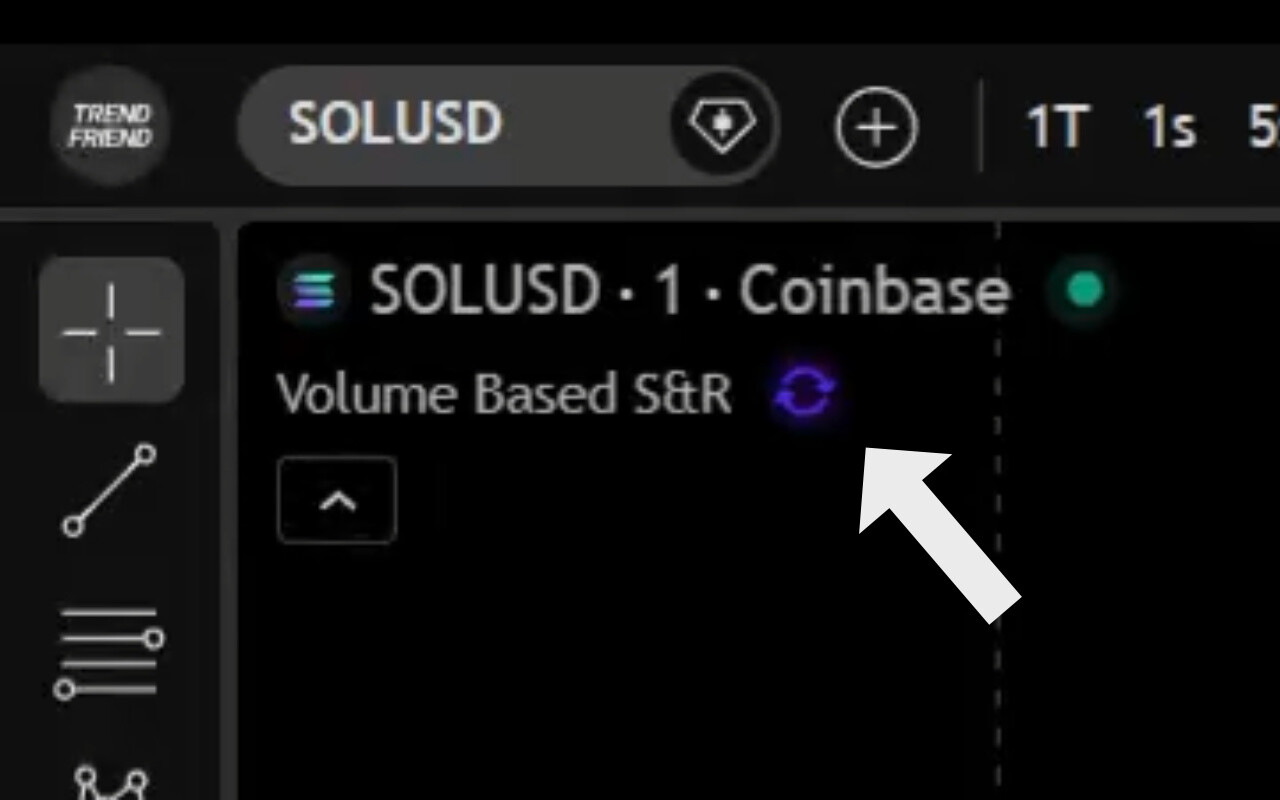
Once the new script version is available, go to your chart with an old version of the indicator on it and you will see a purple refresh button next to the name of the indicator on your chart. Clicking that button will update the indicator to the new version for you.
Note: You may want to just add a new instance of the indicator to your chart instead so you can compare the new version to the old version and decide which version you actually want to use.
When you hit the refresh button, an option will appear that lets you choose if you want to update the indicator across all charts in your current chart payout. So if you have a multi-chart layout and that same indicator is on more than one of those charts, selecting that option will update the indicator on all of the charts within that layout. Deselect that option if you only want it to update on the current chart that is selected.

Instead of using the indicator refresh button, you can also click the indicators tab from your chart and then search for that indicator by name or publisher. Find the indicator and then click on it in the search panel and this will add a new instance of the indicator to your chart with the updated code.
If you have the old version of the indicator on your chart, then this is a good way to do this so you can compare the new version to the old version and decide which version works better for your trading style. If you delete the old version or use the refresh button, then the old code is no longer available to you unless you have that old version on another saved chart somewhere.
When an indicator developer publishes a new script version, they are required to publish release notes that explain the updates that they made to the indicator. These are valuable notes that will teach you about new features and things that may have changed from the previous version of the script.
To read the release notes, click the indicators tab from your chart and then search for the indicator. Find it and then click the read more button to the right side of the indicator name. That will pull up the indicator description page. Scroll down to the bottom of the description and you will find the most recent release notes explaining the changes that were made to that script version.
If a developer published a new script version while you had a chart open, then you will need to refresh your browser for the new version of the indicator to become available to you. After the refresh, you will see a purple refresh button next to the indicator name on your chart. Click that to update the script version. Sometimes TradingView takes a while to update their servers, so if you updated your browser and still don’t see a refresh button, then you may just need to wait a few minutes until TradingView servers update with the new code. If that is the case, wait 15 minutes and refresh your browser.
Sometimes old versions of scripts may perform better for your specific trading style or it may have some features that got removed in the new version, so the best way to deal with new versions is to go to the indicator search panel and then find the indicator and add a new instance of it to your chart. This allows you to look at both versions on the chart and test them against each other. Then just delete the one you don’t want to use anymore.
LEVEL UP YOUR CHARTS
Explore our Premium Indicator Suite. 10 custom indicators built for day traders and swing traders.
Don't have TradingView yet? Get started with TradingView →
Links on this page may be affiliate links.