
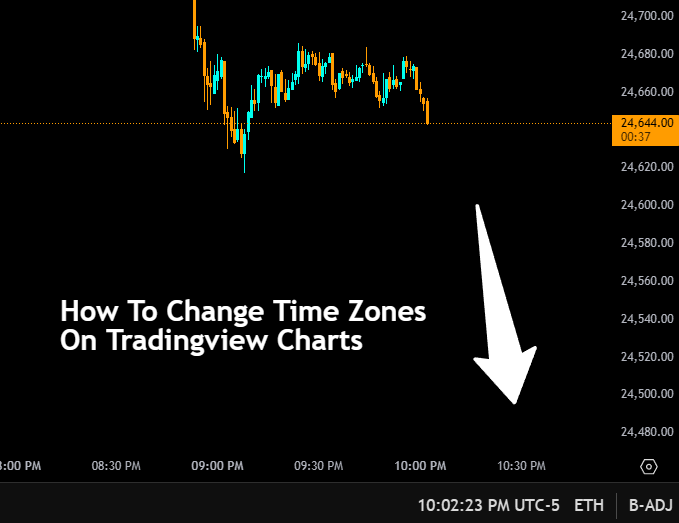
The TradingView chart time zone is controlled from the clock counter at the bottom right of your chart. Click it and a full dropdown of options appears. Most futures and stock traders use New York (Eastern) time since US exchanges base their session hours on Eastern time. Crypto traders typically default to UTC-0.
LD By Lane Dotson · Last updated

The time zone setting dropdown menu can be accessed by clicking the time counter at the bottom-right-hand corner of your chart. When you hover your mouse over that area, it will show a tooltip that says Timezone. Click that to open up the dropdown menu of time zones.
You can select the local time zone that your place of residence is, the time zone the asset you are trading uses or select a time zone that helps you identify important times easier.
Personally, I set my charts to the New York time zone even though I do not live in New York because that is the time zone that the New York Stock exchange runs on and other major exchanges base their operating hours on that time zone.
Since I trade assets that are on these exchanges, I like my charts to show the exact New York hours because I know that at 930 am in New York is when the regular trading hour session opens and 4 pm in New York is when the regular trading hour session closes.
If you are trading crypto markets, you may want to set your charts to UTC – 0. This is because those markets are open 24/7 and the users that trade these markets are all over the world, so using a time zone that is relative to all of the participants can be useful.
TradingView also offers an option you can choose that is called Exchange time zone. This one will sync your charts to the hours that the exchange you are viewing operates on so that you don’t have to worry about that when you are switching between assets that are based in different time zones such as US stocks and China stocks.
You will notice that the UTC number will change across some of the time zones in March and November. This is for areas that participate in Daylight Savings Time which means those areas will change their clocks forward one hour on the second Sunday of March and then set the clocks back one hour on the first Sunday in November.
When this happens, New York time zone(and others that participate in daylight savings time) will change. At the time of writing, New York time zone is the same as UTC – 4 but in November when clocks fall back, it will be UTC – 5.
So when you are selecting your time zone, just click on the location you want to use and TradingView will keep your chart synced to that location’s current time automatically for you.
No. Indicator calculations are based on candle data, not the displayed time zone. Changing your time zone only changes the time labels on the horizontal axis. It does not shift candles or alter indicator values.
Most futures traders use the New York (Eastern) time zone because US futures exchanges like the CME base their session times on Eastern time. The regular trading hours session opens at 9:30 AM and closes at 4:00 PM Eastern, and key economic data releases are also referenced in Eastern time.
Yes. Your time zone setting is saved to your TradingView account, so it will be the same on desktop, mobile, and tablet as long as you are logged in.
LEVEL UP YOUR CHARTS
Explore our Premium Indicator Suite. 10 custom indicators built for day traders and swing traders.
Don't have TradingView yet? Get started with TradingView →
Links on this page may be affiliate links.